
Forever Jewellery - Help
Version 2
- New Features in Version 2
- Installing the App and Signing In
- Scanning the Barcode
- Selecting the Tower
- Searching
- Accessing the Cart / Reviewing the Order
- Popup Messages / Notifications
- Support Information
Here is a summary of the features added in version 2.
- Searches can now be done from the tower selection screen or when viewing a single tower. Explore.
- The catalogue number or SKU are shown below each image in the grid.
- Description and catalogue# are shown in each item detail screen.
- Product groups may now be shown with either 3 or 4 columns, and are no longer limited to 6 rows or 4 pages.
- When submitting an order, notes can be entered. Explore.
- We have added more jewellery product items beyond the tower programs. For example, you can now use the app to easily replenish popular birthstone series by going to the “Birthstone Series” section.
- After adding an item to the cart, the cart icon and badge are shown.
- Navigation arrows have been added to more easily move between item detail screens. Swiping left and right work as before.
- Scrollbars are now shown if more information is available than can be seen on the screen.
- Various other improvements and support for the latest operating systems.
Top ^

- When opening the app the splash screen is briefly shown.
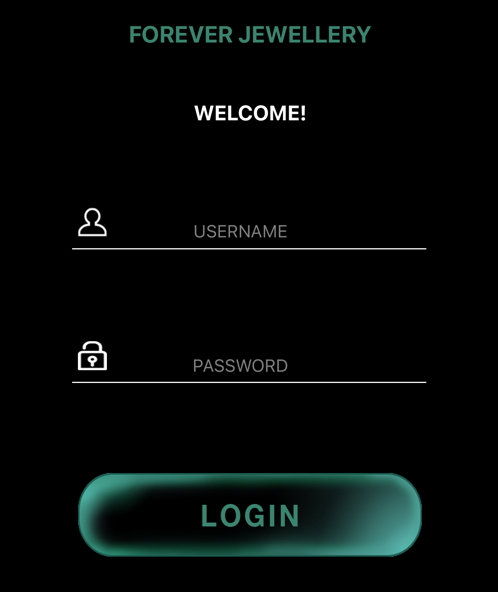
- Enter your username and passsword, then tap the Enter key on your keypad or tap LOGIN. These credentials are the same you would use when signing into the Corona B2B dealer website.
If your store has only a single tower the app will show the barcode scanning page. Explore.
If your store has several towers the app will show the tower selection page. Explore.
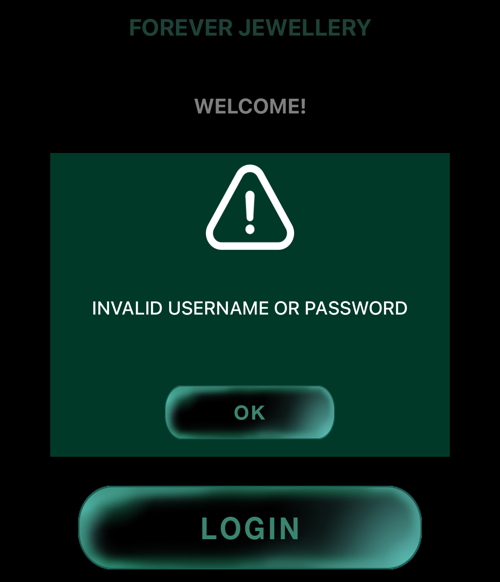
- If the username or password aren't recognized, tap OK and try again.
Top ^
You can easily scan the barcode and add the scanned item into the cart.
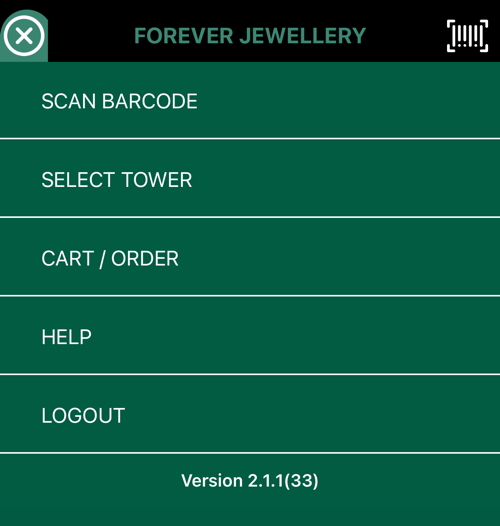
- To scan either use the side menu and tap SCAN BARCODE or tap on the barcode icon in the top right corner.
The first time you try to scan with the app you may be asked for permission. The app only uses the camera when you are scanning a barcode.
Top ^
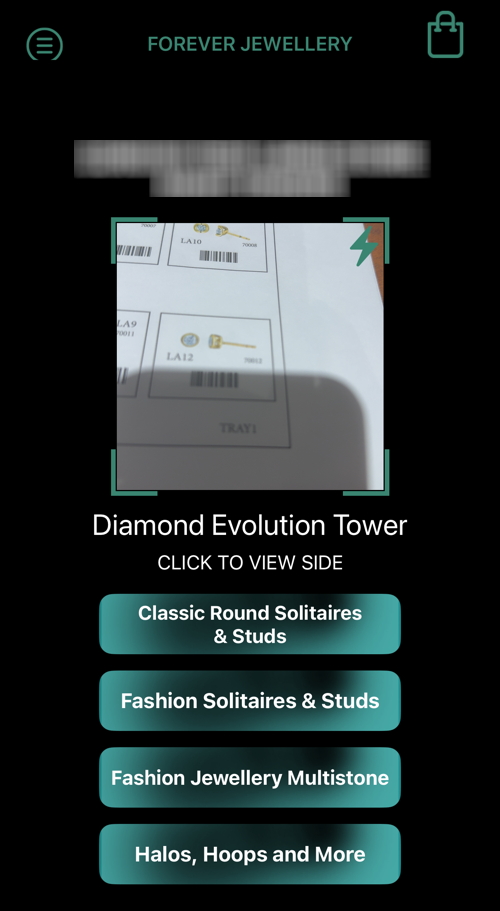
- Now position the camera area directly at the barcode and the application will pick up the item details immediately.
Android users should position the line in the camera view on the barcode.
You can also jump to a specific page/side of the current tower by tapping on the name. You can swipe up to see additional tower names.
Top ^
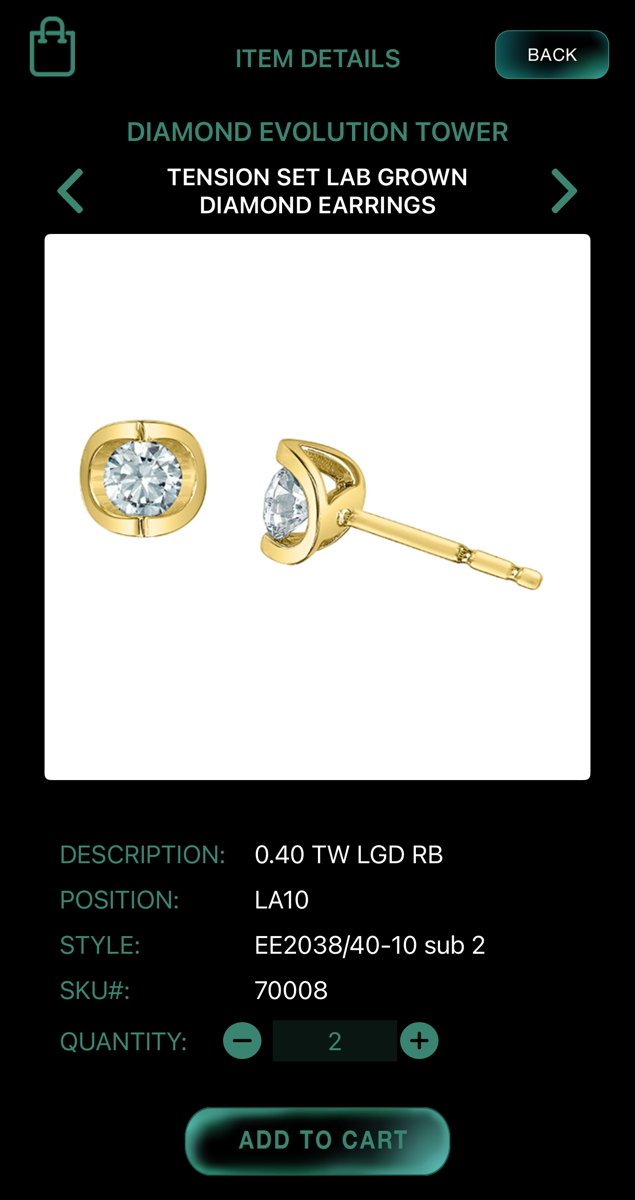
- You can adjust the quantity to be ordered by tapping the - or + buttons. When you've selected the quantity to be ordered tap ADD TO CART.
Top ^
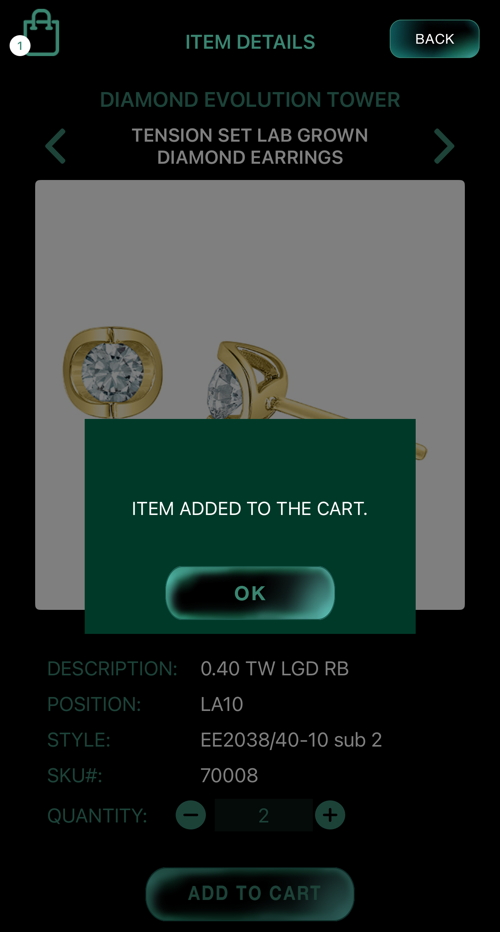
- Items added to the cart. Note the badge on the cart icon in the top left. Select OK to dismiss the prompt.
You may review the items in the cart by tapping the shopping cart icon or tapping CART / ORDER in the main menu.
Top ^
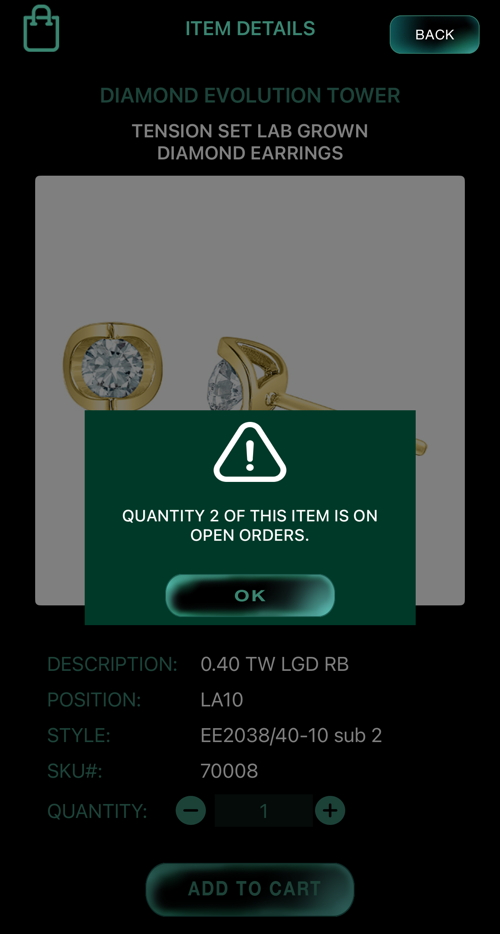
- If there is an existing order for the item selected, you would receive this prompt about the existing order.
If you wish to add the item to your cart, tap OK and then tap ADD TO CART again.
Top ^
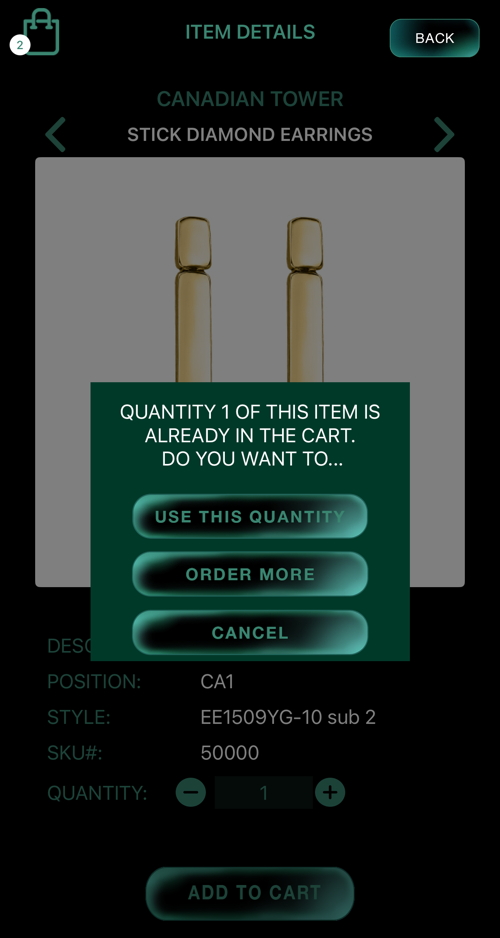
- This notification appears if the selected item is already in the cart.
If you choose USE THIS QUANTITY the quantity in the cart is overwritten with the selected quantity.
You can add this quantity to the existing order by tapping on ORDER MORE or dismiss the prompt by tapping CANCEL.
Tapping CANCEL does not affect the items/quantity in the cart.
Top ^
If you have more than one Forever Jewellery tower, select one of the towers by tapping the name.
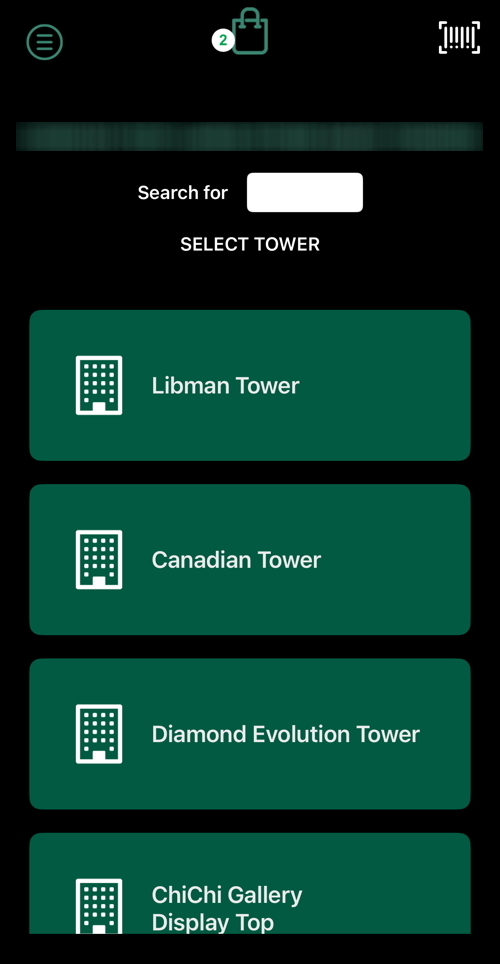
- To choose a tower simply tap on the tower name.
Top ^
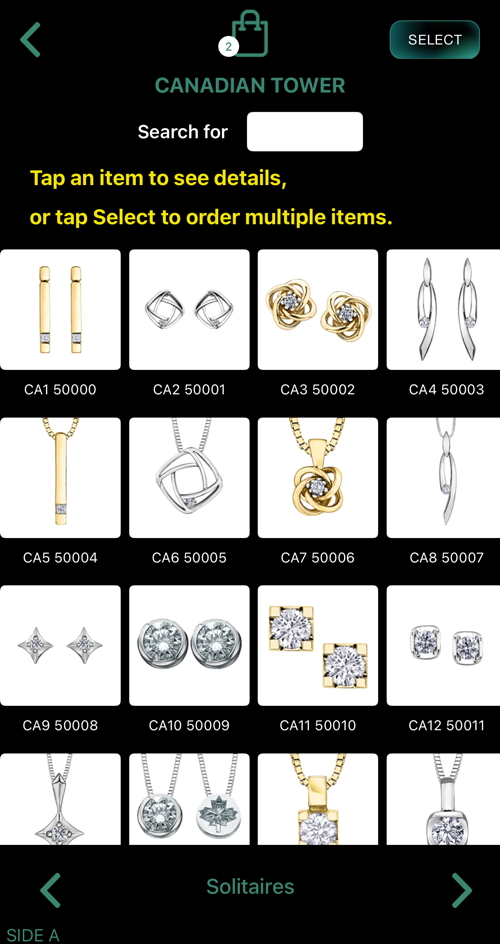
- The “A” (first) side of the tower is displayed once the tower is chosen. Simply swipe left or right or tap the left and right arrows at the bottom, to see the different sides of the tower.
This view shows you the position of the items on each side of the tower and the catalogue number of SKU if available.
Top ^
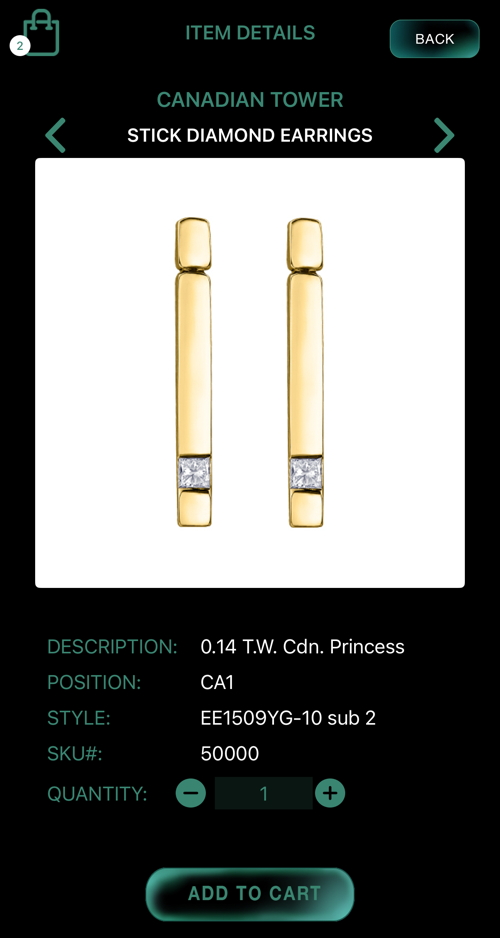
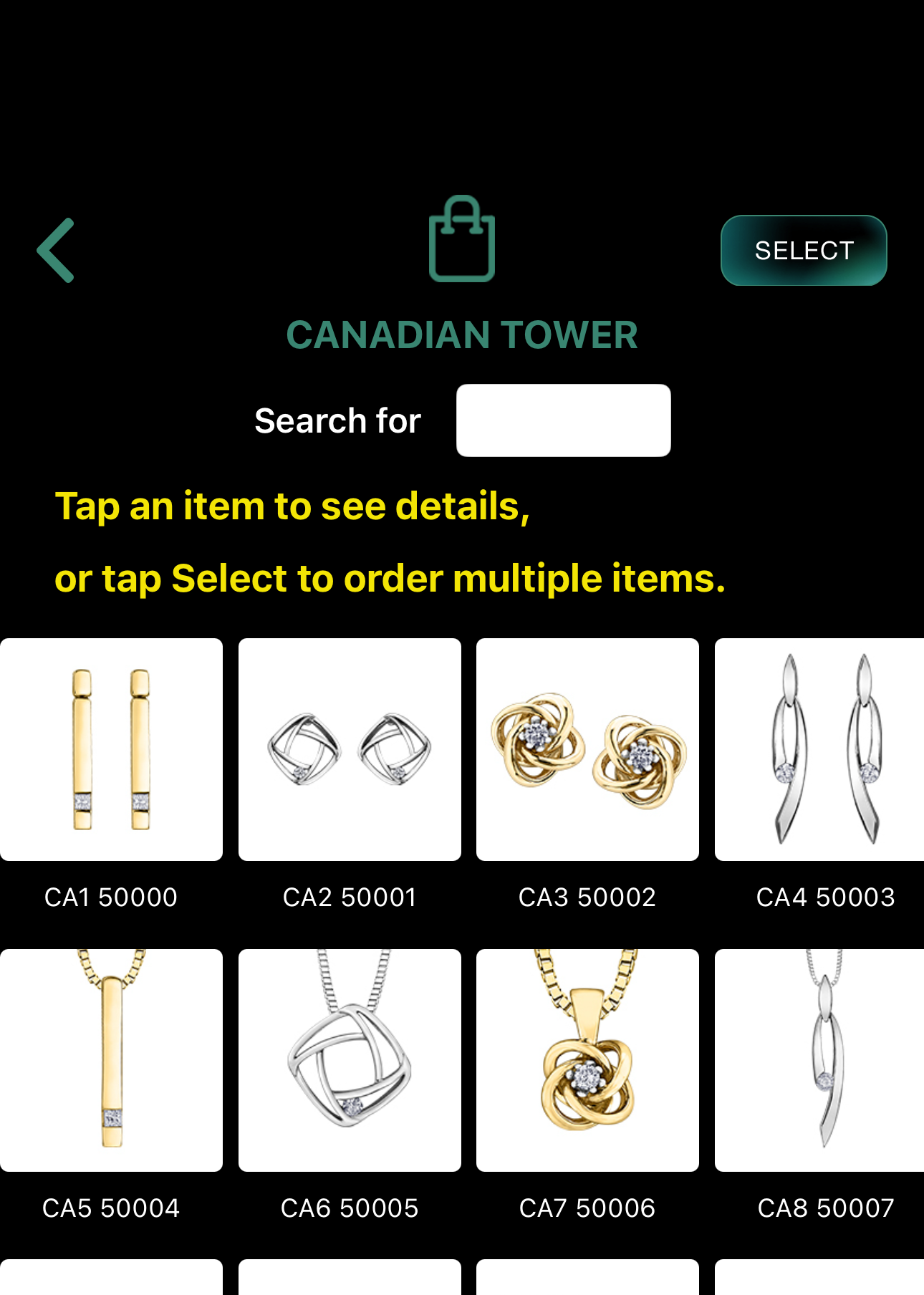
- Tap on an item to see its details. Swipe up, down, left or right to view other items on the tower.
The dsescription, position and style are shown. The position is the normal location of the item in the tower. For example, CA1: Canadian Tower Side A and item 1.
If the item has a catalogue number and/or SKU, those will also be shown.
To add the item to the cart, select the desired quantity and tap ADD TO CART.
Top ^
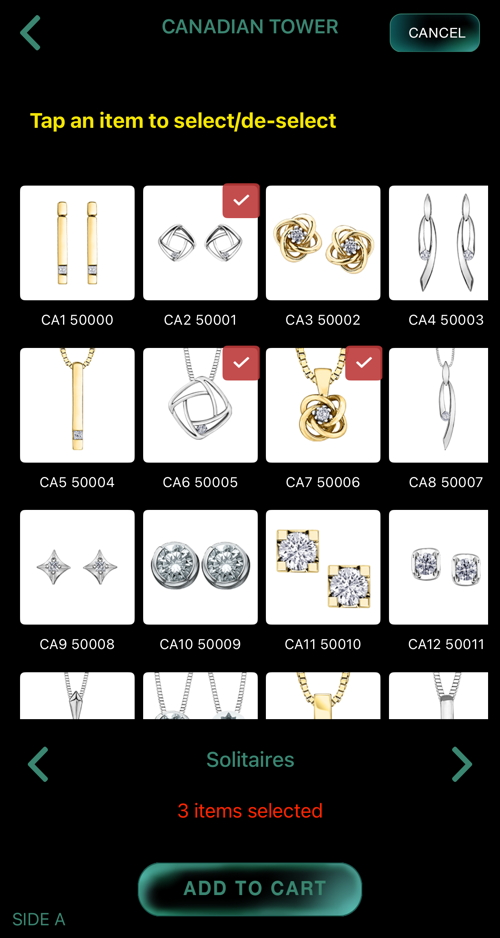
- If you need to order several items from the grid tap SELECT in the top right corner. This puts the app into "select mode" and changes the button to CANCEL which returns to the normal grid view when tapped.
You can then tap on one or more items. To deselect an item, just tap on the item again.
Tapping ADD TO CART will add quantity one of each selected item to the cart. To change the quantity, open the cart.
Top ^
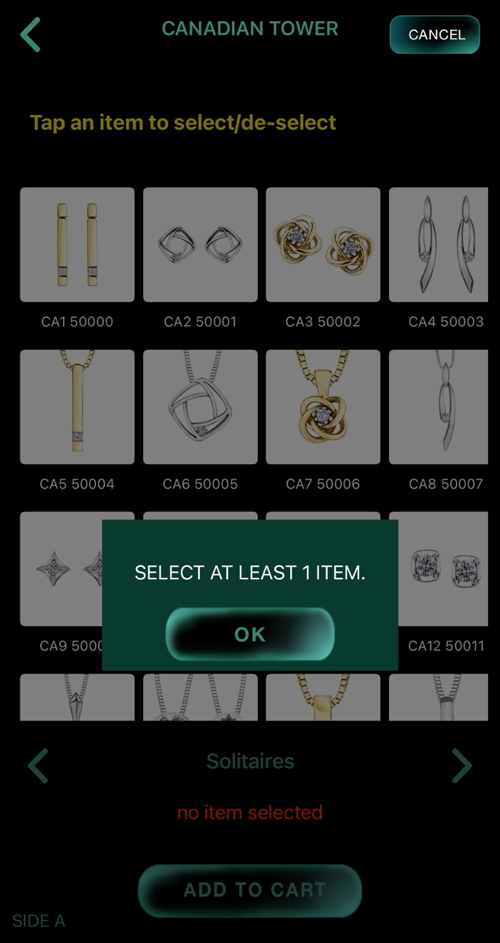
- This notification appears when no item is selected while adding to the cart. Please select one or more items and tap ADD TO CART.
Top ^
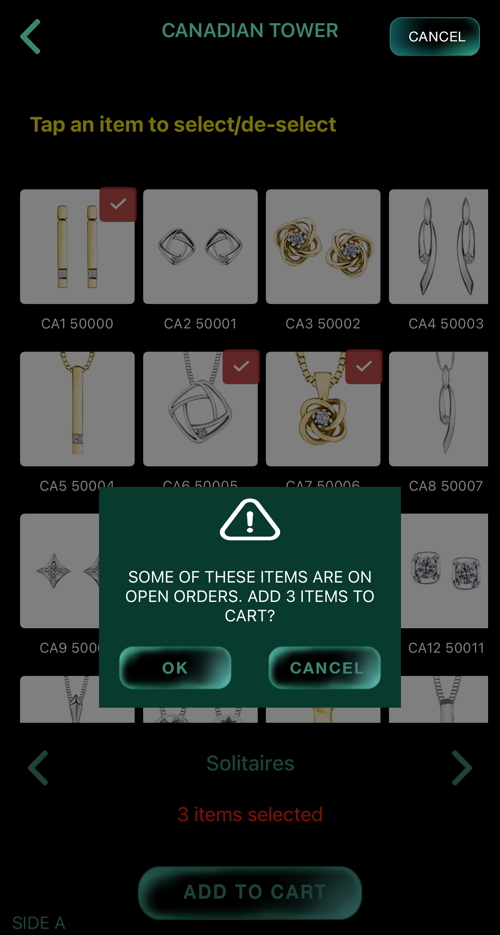
- If one or more of the items selected are already on an open order you would be notified with this prompt.
Tap OK to add the items to the cart and dismiss the prompt.
Tap CANCEL to dismiss the prompt without adding the items to the cart.
Top ^
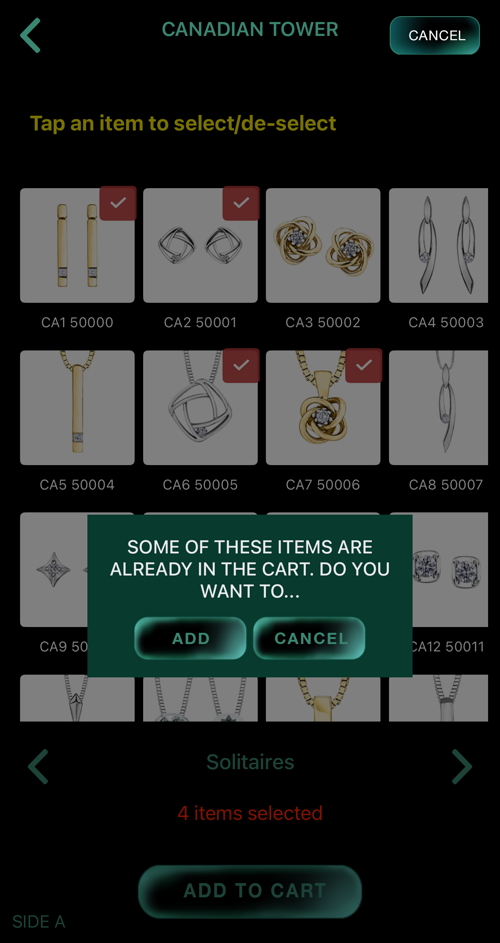
- You would receive this prompt when the selected items are not on the open order, but one or more of the selected items are in the cart.
Tap ADD to add one quantity of selected items to the existing items in the cart.
Tap CANCEL to dismiss the prompt. The items in the cart remains unchanged if you choose this option.
Top ^
At the top of the tower selection or when viewing a single tower, you can search for items by name, style, catalog number, description.
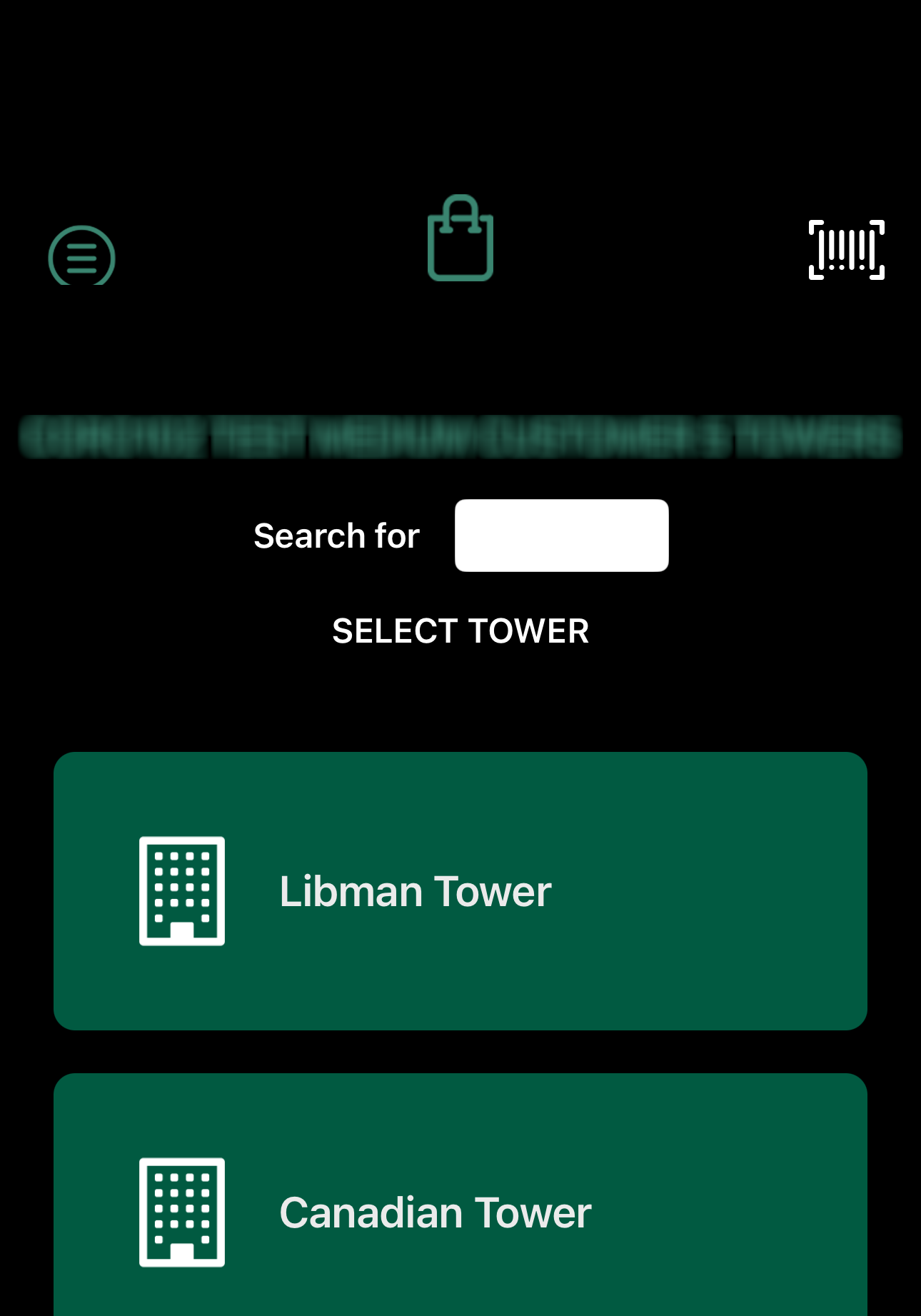
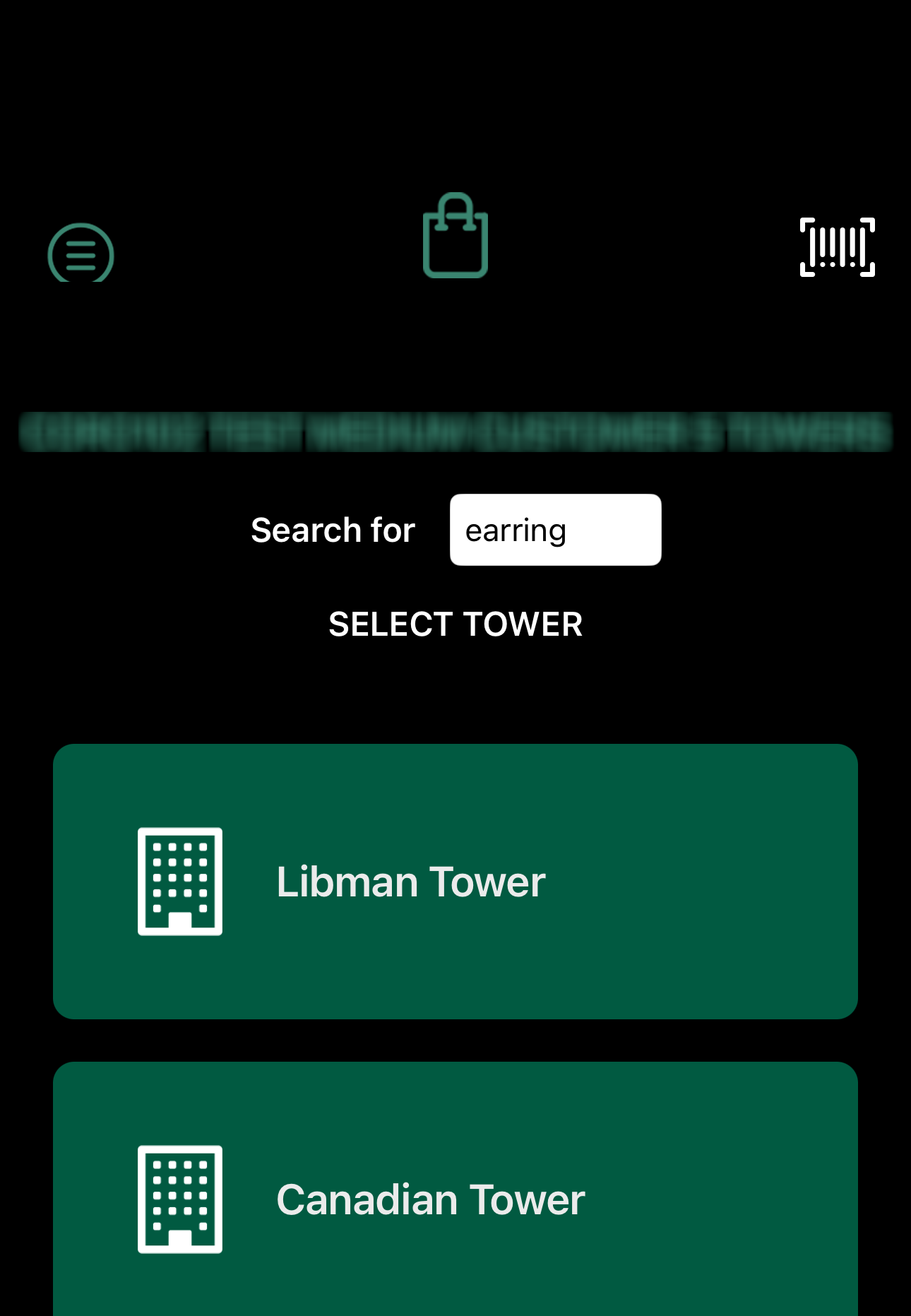
- After entering a search term, tap the Enter or Search key on your keyboard to view all matching items, across all towers or in the single one.
Top ^
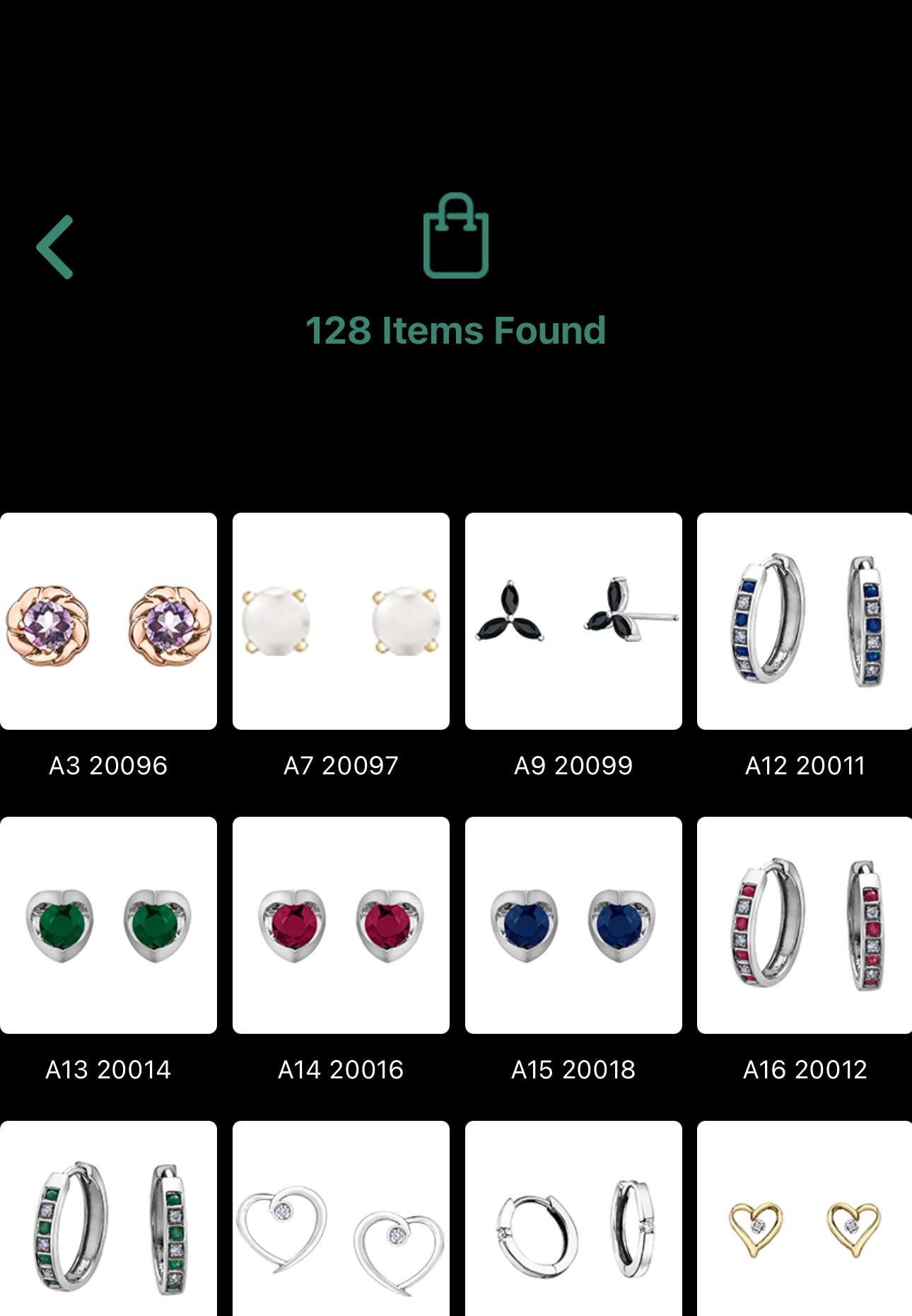
- Any items matching your search are shown in a grid. You can scroll down to see more items.
Tapping an item will show the details for that item. From the detail you can swipe left or right to see additional items that were found.
Top ^
How to access the Cart / Order.
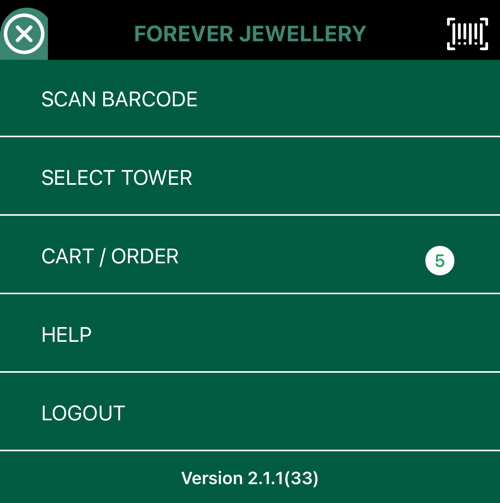
- CART / ORDER can be accessed by the side menu options.
Top ^

- CART / ORDER can also be accessed by using the cart icon at the top of the screen.
Top ^

- The items in the cart can be reviewed before placing the final order. Simply tap the plus or minus icons to change the quantity or tap the trash icon to remove the item from the cart. You can tap the arrow to expand or collapse the list of items on each side of the tower.
If you've added items from other towers or sides you can use the right and left arrows at the top of the cart.
When you are ready to place the order, enter a PO number if you wish. Tap PLACE ORDER to submit the order.
You can also add a note to provide additional instructions.
All items in the cart can be removed by tapping the CANCEL button at the top.
Top ^
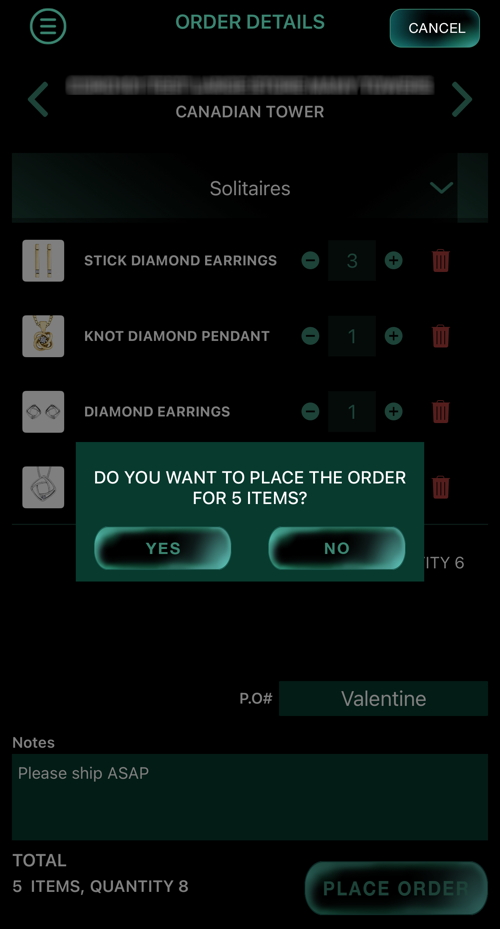
- You can confirm the order by tapping YES or tapping NO to continue adding to or editing the cart.
Top ^
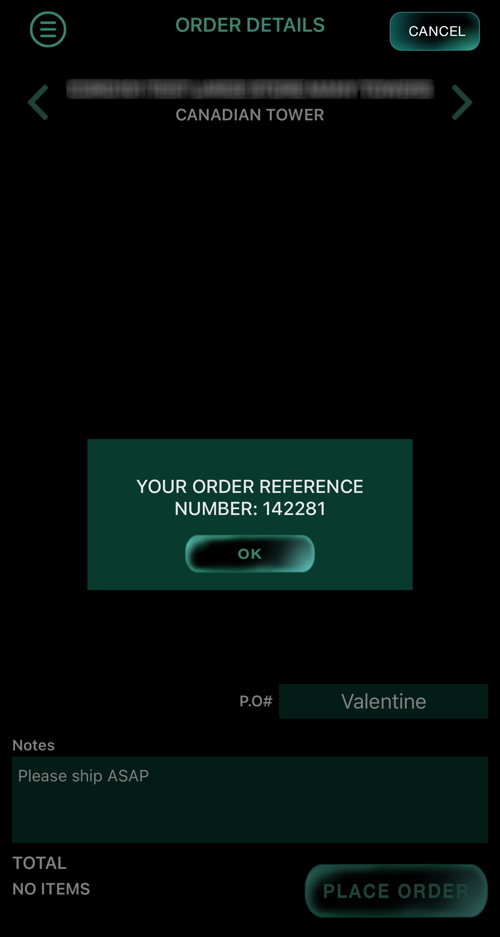
- After submitting the order you will receive a notification with the order reference number. Also, an email is sent to the store manager. Tap OK to continue using the application.
Top ^
This section describes some of the popups and messages you may see when using the app.
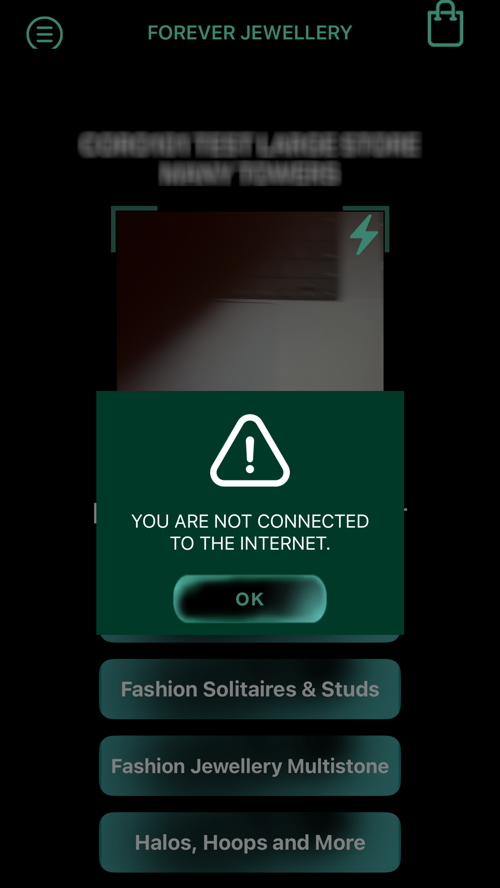
- This message appears if the internet connection is unavailable. Please check the internet connection and relaunch the app again.
Top ^

- This message appears if the session has expired due to inactivity. Tap OK and sign in again.
Top ^
Top ^